cTrader cBot - Full User Guide
Everything the free TradeLog cTrader cBot does - the on-chart panel, auto-sync, every setting explained, standalone use, and the no-install API alternative.
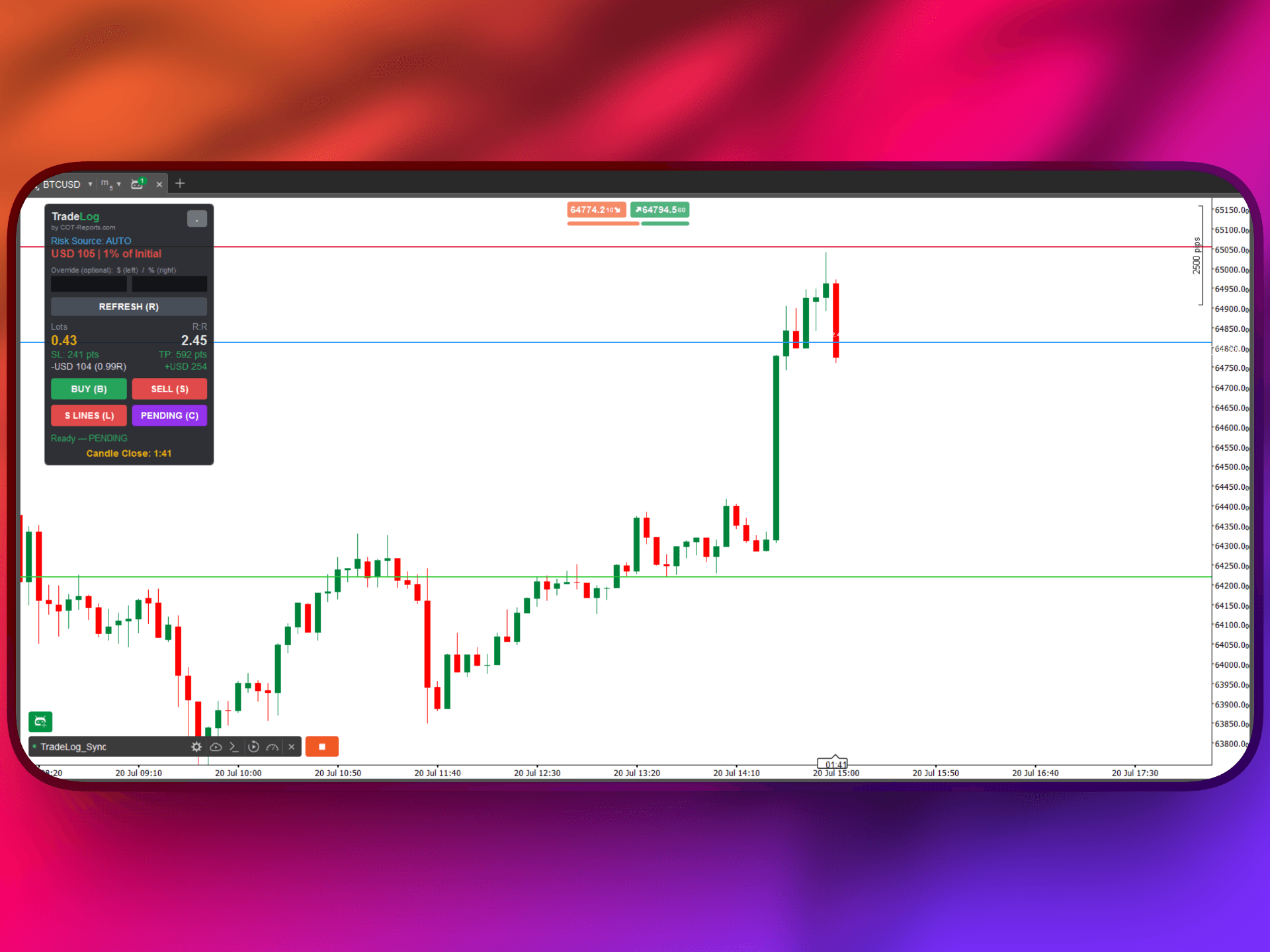
The TradeLog cBot for cTrader is a free, all-in-one trading assistant that runs inside cTrader Automate. It auto-syncs your trades to your TradeLog journal AND gives you a full on-chart panel - now at parity with the MetaTrader 4/5 EA: a Position Size Calculator, BUY / SELL and MARKET / PENDING execution buttons, an auto-tracking stop-loss planning line, a strict-risk auto-trim, and a candle-close countdown. It comes at no extra cost with the TradeLog plans that include robots, and the on-chart tools work even with no TradeLog account.
What the cTrader cBot does
- Auto Trade Sync - every closed trade (plus running and pending orders) is pushed to your journal in real time, with entry/exit price, P/L, volume, stop-loss, take-profit, fees and timestamps. Requires an API key (on the TradeLog plans that include robots).
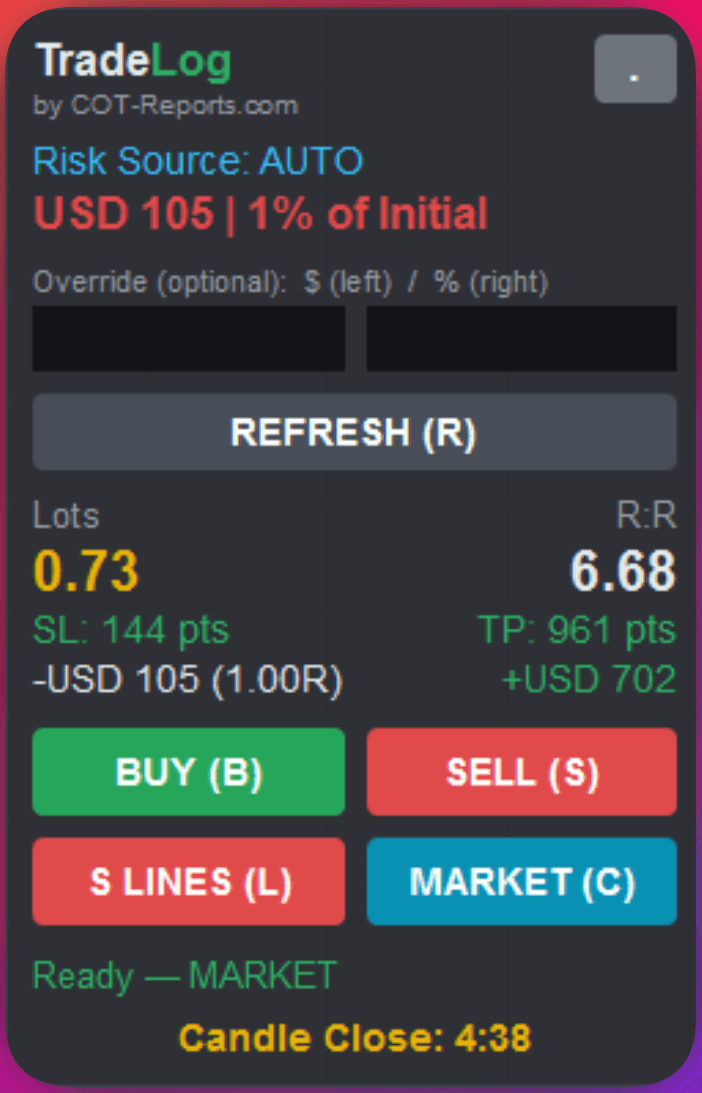
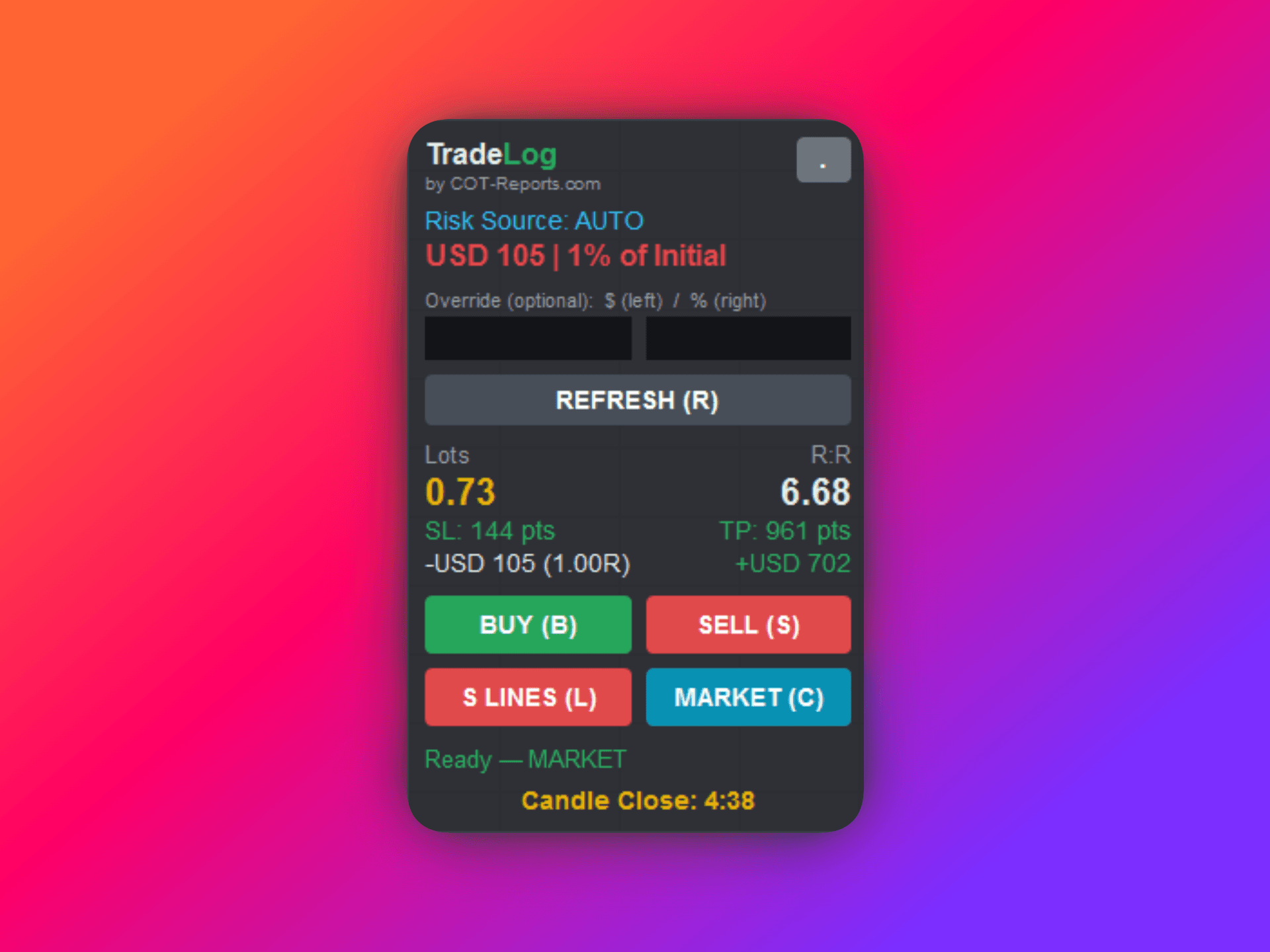
- On-chart panel (1:1 with the MetaTrader EA) - a draggable panel showing the TradeLog header and version, your Risk Source (AUTO / MANUAL / OVERRIDE), the resolved risk line (for example "Fixed USD 101 (1.0%)"), an optional $ / % override, a REFRESH button, a Lots and R:R readout, the SL/TP distance and risk/reward, and BUY / SELL / S LINES / MARKET (or PENDING) buttons.
- Position Size Calculator (PSC) - on-chart Entry/SL/TP lines that compute the exact volume for your risk. Risk source AUTO (pulls your TradeLog risk profile via the API key) or MANUAL (you set your own risk %). Shows live R:R, planned risk and the real risk at the step-rounded volume.
- SL planning-line auto-track - the stop-loss planning line automatically follows the price extreme (plus spread) in the adverse direction, so you stop re-dragging your stop. Planning line only - it never touches a live order. On by default.
- Strict-Risk auto-trim - in AUTO mode it follows your TradeLog strict-risk setting (off by default); in MANUAL mode it is an opt-in switch. When active, an open position with a stop-loss that risks more than your planned risk is trimmed by exactly the excess volume, to bring it back to your planned risk (gaps and slippage can still cause a larger loss). It needs a stop-loss and skips risk-free / no-SL trades.
- Candle Countdown - an on-chart timer counting down to the close of the current candle.
- Works with every cTrader broker and instrument, runs inside cTrader Automate alongside your other cBots, and uses minimal resources. The sync only reads trades - the cBot never accesses your funds or login credentials, and it only ever places or trims a position when you use its buttons or enable strict risk.
The on-chart panel
The panel mirrors the MetaTrader EA from top to bottom: the TradeLog header (with a collapse button and an "update available" notice when a newer cBot is published); your Risk Source - AUTO (your TradeLog profile), MANUAL (your own %), or OVERRIDE (a one-off $ or % you type in); the resolved risk line (for example "Fixed USD 101 (1.0%)"); a REFRESH button; a Lots and R:R readout with the SL/TP distance in pips and the risk and reward in your account currency; the BUY / SELL / S LINES / MARKET (or PENDING) buttons; and a candle-close countdown. You can theme it Light, Dark or Auto, anchor it to any chart corner, nudge it with an X/Y offset, and collapse it to a compact header.
How to activate it (step by step)
Auto-sync needs a TradeLog API key (on the TradeLog plans that include robots). For the on-chart tools only, skip the key - see "Use it without a TradeLog account" below.
- 1In TradeLog, open Connections from the sidebar and pick cTrader (cBot).
- 2Click Create API Key, name it, and copy the key.
- 3Click Download to get the cBot file (TradeLog Sync.algo).
- 4Open cTrader and go to the Automate tab. Drag the .algo file into the cBots list if it does not appear automatically.
- 5Add the TradeLog Sync cBot to a chart and paste your API key into the API Key parameter.
- 6Click Play to start the cBot (allow live trading / Automate if cTrader prompts).
- 7Take or close a trade, then open your TradeLog journal - it should appear within seconds.
Every setting explained: Sync
- API Key - your TradeLog API key. Required for sync; leave empty for standalone (no account).
- Enable Sync (Master) - master on/off for trade sync. Recommended: on (off for standalone, PSC-only use).
- Sync Interval (seconds) - how often the cBot checks for new trades. Recommended: 30.
- History import - your past closed trades are imported automatically once, on the first connect. There is no setting to toggle.
- Show Notifications / Debug Mode - cTrader notifications and verbose logging. Recommended: notifications on, debug off.
Every setting explained: Position Size Calculator
- Show Risk Calculator - the on-chart panel and Entry/SL/TP planning lines on/off. Recommended: on.
- Risk Mode - AUTO (your TradeLog risk profile, needs the key) or MANUAL (the percentage below). Recommended: AUTO when connected, MANUAL for standalone.
- Manual Risk % - the risk percentage used in MANUAL mode.
- Default SL Pips - the fixed-pip seed for where the SL line first appears (default 20). The lines otherwise auto-seed an ATR-based distance clamped to the visible chart range. Recommended: your typical stop distance.
- Default RR - the reward-to-risk ratio used to place the TP line. Recommended: your typical target (for example 2.0).
- Show Real Risk - show the real risk at the step-rounded volume next to the target risk. Recommended: on.
- Entry/SL/TP Line Color, Line Thickness, Line Label Font Size - appearance of the on-chart lines. Recommended: defaults.
Every setting explained: SL auto-track and strict risk
- SL Auto-Track (planning line) - the SL planning line auto-follows the adverse price extreme + spread, so you stop re-dragging it. Planning line only; on by default; set false to disable. (Auto-track has no hotkey on cTrader - toggle it via this parameter.)
- RR Lock (auto-move TP on SL drag) / RR Lock Ratio - when on, dragging the SL line auto-moves the TP line to hold this reward:risk. Planning line only. Off by default.
- Strict Risk Auto-Trim (Manual mode) - OPT-IN auto-trim for MANUAL mode: an open position that risks more than your manual target is trimmed down to it. Off by default; needs a stop-loss; skips risk-free / no-SL trades. In AUTO mode the trim instead follows your TradeLog strict-risk setting (this switch is ignored).
- Strict Risk: trim ALL symbols - by default the trim only touches positions on this chart's symbol; turn this on to trim over-risk positions on every symbol account-wide. Recommended: off.
Every setting explained: Panel
- Show Execution Panel - the on-chart BUY / SELL / MARKET panel on/off. Needs Show Risk Calculator on (it reuses the planning lines). Recommended: on.
- Panel Corner - which chart corner the panel anchors to. Recommended: Top-Left (default).
- Panel Theme - Light, Dark, or Auto (Auto follows the chart background). Default: Dark.
- Panel Offset X / Panel Offset Y - nudge the panel away from its corner so it clears the on-chart line handles. Recommended: 0; increase if it overlaps.
Use it without a TradeLog account (standalone)
Leave the API Key empty and set Risk Mode to Manual: the whole on-chart toolkit - the Position Size Calculator, the Entry/SL/TP lines with live R:R, the SL auto-track planning line, the candle countdown, the BUY / SELL / MARKET buttons and the optional strict-risk auto-trim - all run locally with no account. Auto-sync to your journal is the only part that needs a key. You can also buy the cBot on its own on COT-Reports when the standalone products launch - and it always comes free with every TradeLog plan that includes robots.
Plan note
Auto-sync (the API key) is available on the TradeLog plans that include robots. The other plans do not include an API key, but the on-chart calculator and standalone tools are always free. See the Plans & Pricing article.
Why cTrader's own risk and target figures differ from ours
If you compare the numbers side by side, cTrader's stop-loss and take-profit money labels will usually differ from TradeLog's by roughly one commission. Neither is wrong -- they answer different questions. cTrader assumes the position will be opened AND closed, so both of its labels book the full round-turn commission: its risk figure is your risk PLUS the round turn, and its target figure is your gross profit MINUS the round turn.
TradeLog counts only the fees that have actually been charged so far. On a position that is still open, that is the opening half only -- so our Exposure reads risk + fees booked, and our Targeting reads gross target - fees booked. Once the trade closes and the second half is charged, the two views converge and our figures reconcile with your broker statement to the cent.
Alternative: cTrader API sync (no install)
Prefer not to install a cBot? cTrader also offers a direct API connection: you authorize TradeLog via OAuth and your trades sync automatically on a daily schedule (and on demand). No software runs on your machine, but it is a daily pull rather than real-time, and it does not include the on-chart Position Size Calculator. Learn more at /integrations/ctrader-api.
- 1In TradeLog, go to Connections and click Connect cTrader in the cTrader / API section.
- 2You are redirected to the cTrader authorization page; log in and authorize TradeLog.
- 3Choose which cTrader accounts to sync and confirm - you are redirected back to TradeLog.
- 4New closed trades then sync automatically each day; you can also trigger a sync from the Accounts page.
Was this helpful?