MetaTrader 4 EA - Full User Guide
Everything the free TradeLog MT4 Expert Advisor does, how to install and connect it, every setting explained, and how to use it with or without an account.
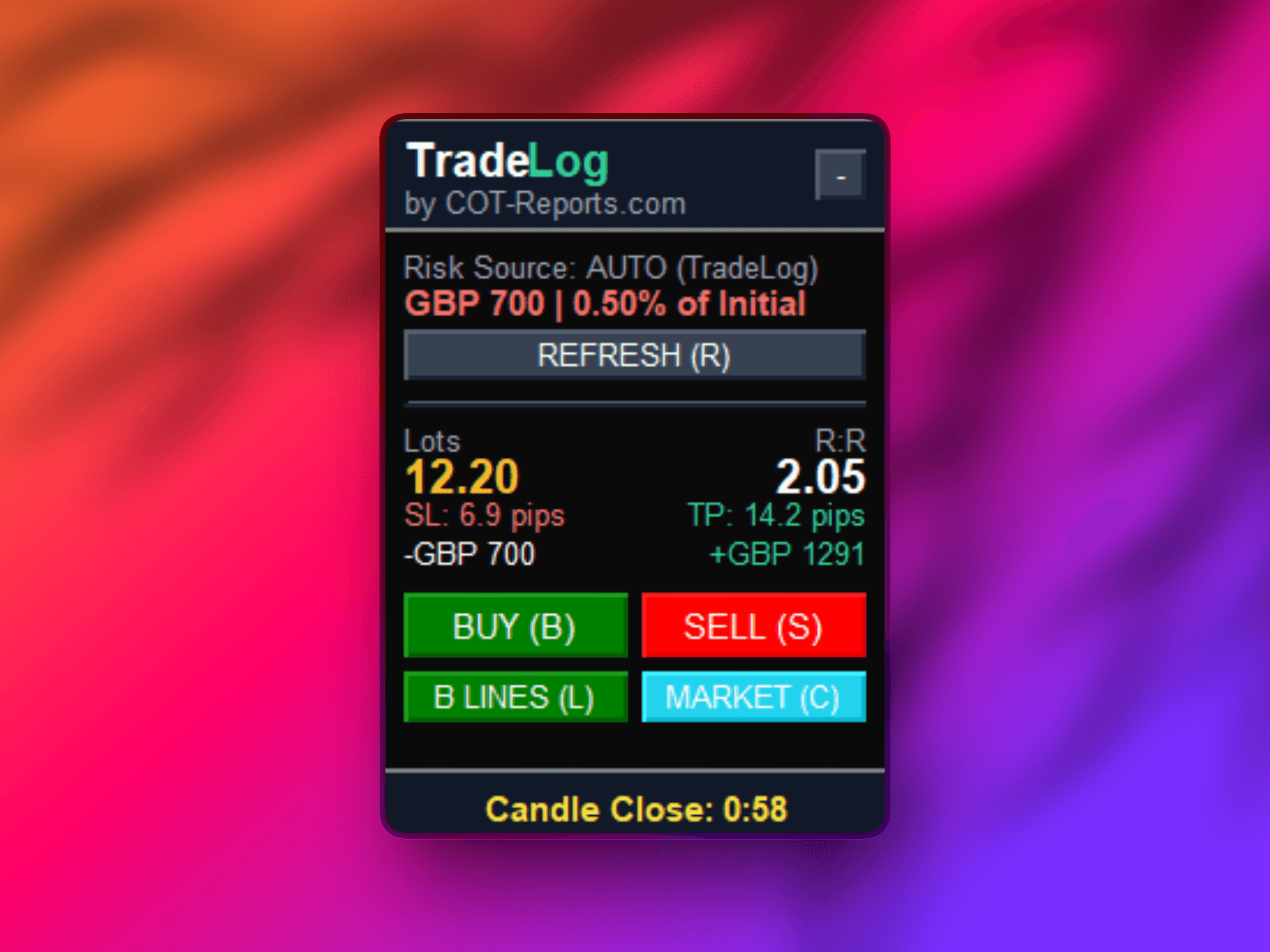
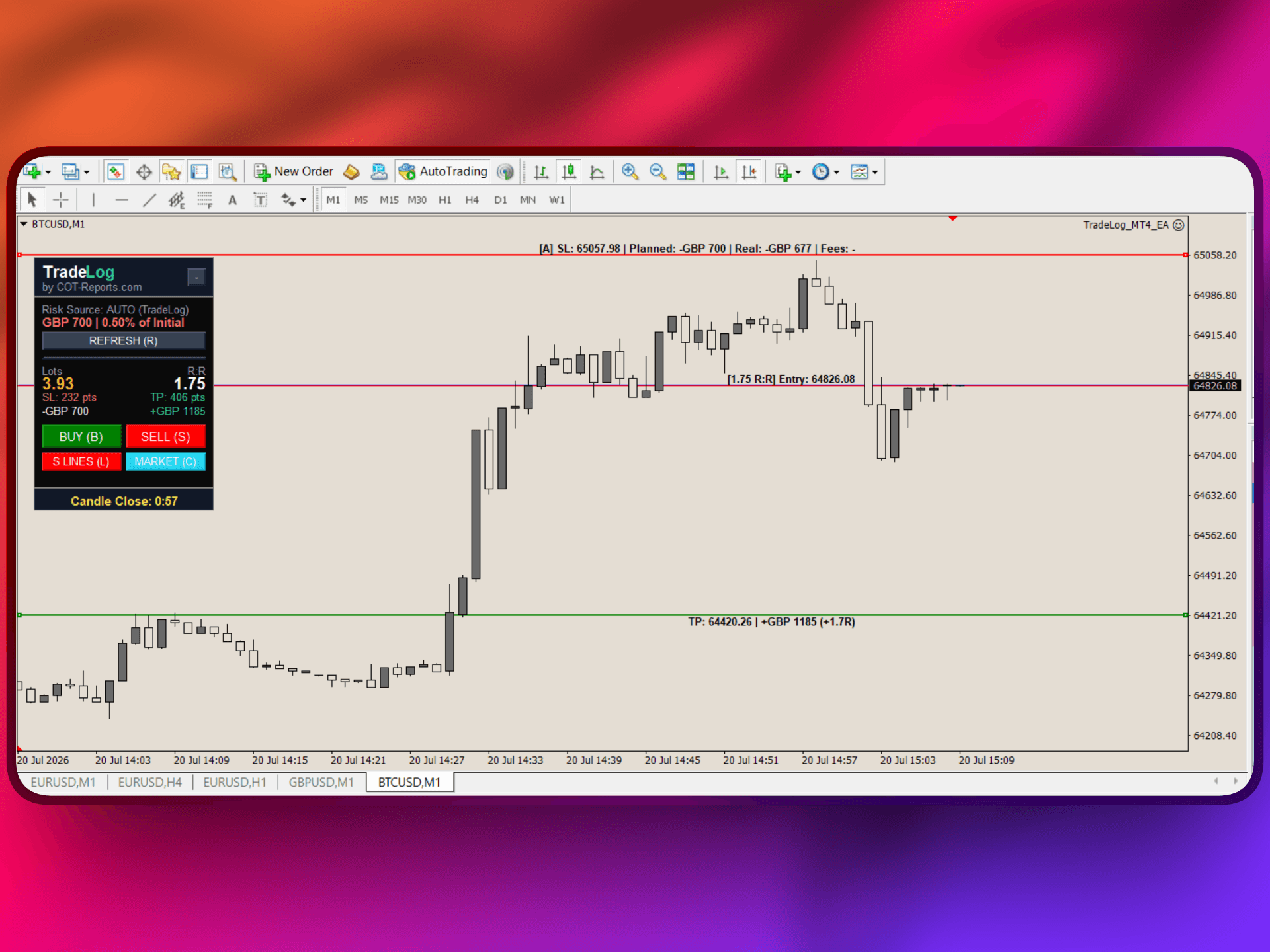
The TradeLog Expert Advisor (EA) for MetaTrader 4 is a free, all-in-one trading assistant. It automatically syncs your trades to your TradeLog journal AND gives you an on-chart Position Size Calculator, a stop-loss planning line that auto-tracks price, an optional strict-risk auto-trim, and a candle-close countdown - all in one lightweight EA. It comes at no extra cost with the TradeLog plans that include robots, and the on-chart tools work even with no TradeLog account at all.
What the MT4 EA does
- Auto Trade Sync - every closed trade (plus running and pending orders) is pushed to your journal in real time, with entry/exit price, P/L, lots, stop-loss, take-profit and timestamps. If MT4 is offline, trades sync when it reconnects. Requires an API key (on the TradeLog plans that include robots).
- Position Size Calculator (PSC) - on-chart Entry/SL/TP lines that compute the exact lot size for your risk. Two risk sources: AUTO (pulls your TradeLog risk profile via the API key) or MANUAL (you set your own risk in $ or %). Shows live R:R, planned risk, real risk at the rounded lot, and fees.
- SL planning-line auto-track - the stop-loss planning line automatically follows the price extreme (plus spread) in the adverse direction, so you stop re-dragging your stop after price runs through it. Planning line only - it never touches a live order. On by default.
- Manual Strict-Risk auto-trim (opt-in) - when enabled in Manual mode, if an open position with a stop-loss risks more than your planned risk, the EA trims exactly the excess volume to bring it back to your planned risk (gaps and slippage can still cause a larger loss). Off by default - it never closes real volume until you turn it on.
- Candle Countdown - an on-chart timer counting down to the close of the current candle.
- Works with every MT4 broker and every instrument (forex, metals, indices, commodities, crypto CFDs), runs alongside your other EAs, and uses minimal resources. The sync only reads trades - the EA never accesses your funds or login credentials, and it only ever places or trims a position when you use its buttons or explicitly enable strict risk.
How to activate it (step by step)
Auto-sync needs a TradeLog API key (on the TradeLog plans that include robots). If you only want the on-chart tools, you can skip the key - see "Use it without a TradeLog account" below.
- 1In TradeLog, open Connections from the sidebar and pick MetaTrader 4/5.
- 2Click Create API Key, give it a name, and copy the key.
- 3On the same screen, click Download to get the EA file (TradeLog_MT4_EA.ex4).
- 4In MT4: File > Open Data Folder > MQL4 > Experts, and copy the .ex4 file there.
- 5Back in MT4, right-click the Navigator panel and choose Refresh (or restart MT4). "TradeLog" appears under Expert Advisors.
- 6Drag the EA onto any chart. In the Inputs tab, paste your API key into the ApiKey field.
- 7In Tools > Options > Expert Advisors, tick "Allow WebRequest for listed URL" and add https://tradelog.cot-reports.com.
- 8Click OK, then make sure AutoTrading is enabled (the toolbar button is green and the EA shows a smiley face on the chart).
- 9Take or close a trade, then open your TradeLog journal - it should appear within seconds.
Every setting explained: Trade Sync
- ApiKey - your TradeLog API key. Required for sync; leave empty for standalone (no account).
- AccountName - optional label for the journal account the EA creates. Recommended: leave blank (auto-named).
- SyncIntervalSeconds - how often the EA checks for new trades. Recommended: 30.
- SyncRunningTrades - also show open positions in the journal. Recommended: on.
- SyncPendingOrders - also sync pending (limit/stop) orders. Recommended: on.
- ImportCanceledPendings - import pending orders that were placed and then cancelled. Recommended: on.
- History import - your past closed trades are imported automatically once, on the first attach. There is no setting to toggle.
- SyncAllSymbols - sync every symbol from one chart, not just this chart's symbol. Recommended: on.
- UseAutoGmtOffset / BrokerObservesDST / BrokerGMTOffset - broker time handling. Recommended: leave auto on; only set the manual offset if your broker uses a fixed (non-DST) server time.
- ShowAlerts / DebugMode - on-chart alerts and verbose logging. Recommended: alerts on, debug off.
Every setting explained: Position Size Calculator
- EnablePSC - turn the on-chart calculator and Entry/SL/TP lines on or off. Recommended: on.
- RiskSource - AUTO uses your TradeLog risk profile (needs the API key); MANUAL uses the values below. Recommended: AUTO when connected, MANUAL for standalone.
- ManualRiskType - Fixed ($), Dynamic (% of balance), or Drawdown (%). Used only in MANUAL mode.
- ManualRiskDollars - the fixed $ risk per trade (when ManualRiskType is Fixed).
- ManualRiskPercent - the % risk per trade (when Dynamic or Drawdown).
- ManualDDLevel - the drawdown tier (when ManualRiskType is Drawdown).
- Default RR - the seed reward:risk used to place the TP line (default 2.0). The lines auto-seed an ATR-based SL distance clamped to the visible chart - there are no pip inputs.
- CommissionPerLot - your broker's round-trip commission, used for the SL "Fees" line. Recommended: match your broker (for example 5.00), or 0 if commission-free.
- ShowIdealRisk / ShowRealRisk / ShowFees - what the SL line label shows: planned (target) risk, real risk at the rounded lot, and fees. Recommended: all on.
Every setting explained: SL auto-track and strict risk
- SLAutoTrackDefault - the SL planning line auto-follows the adverse price extreme + spread. On by default. Set it off to disable, or toggle live with the "T" key.
- ShortcutAutoTrack - the key that toggles auto-track live (the chart must have focus). Default: T.
- ManualStrictRisk - OPT-IN auto-trim (Manual mode). When on, an open position that risks more than your planned risk is trimmed down to it. Off by default - it never closes real volume until you enable it. It needs a stop-loss and skips risk-free / no-SL trades.
Use it without a TradeLog account (standalone)
Leave ApiKey empty and the EA runs with zero network - it never contacts the server. You still get the full on-chart toolkit: the Position Size Calculator, the Entry/SL/TP lines with live R:R, the SL auto-track planning line, the candle countdown, the BUY/SELL/pending buttons, and the optional Manual Strict-Risk auto-trim. Set your own risk under the Manual settings. You can also buy the EA on its own on COT-Reports when the standalone products launch - and it always comes free with every TradeLog plan that includes robots.
Plan note
Auto-sync (the API key) is available on the TradeLog plans that include robots. The other plans do not include an API key, but the on-chart Position Size Calculator and all standalone tools are always free. See the Plans & Pricing article for details.
Was this helpful?